
Date : September 9, 2026
Category: Recovery & Wellness
Titan Cold Plunge Chiller WiFi App Walkthrough: Every Feature Explained
The Titan Wellness cold plunge chiller WiFi app puts water temperature, session scheduling, and remote monitoring in one place, right on an owner’s phone. That’s the one thing that trips up most daily plungers: standing around waiting for the tub to cool. Below is what each function actually does, how it holds up once you’re using it daily, and what
The Titan Wellness cold plunge chiller WiFi app puts water temperature, session scheduling, and remote monitoring in one place, right on an owner’s phone. That’s the one thing that trips up most daily plungers: standing around waiting for the tub to cool. Below is what each function actually does, how it holds up once you’re using it daily, and what to check when the connection drops.
What Does the Titan Chiller App Actually Control?
The app controls three core functions on WiFi-enabled Titan cold plunge chillers: temperature setting, session scheduling, and remote monitoring. Nothing about the physical chiller changes. The app is simply a remote extension of the on-unit controls.
- Temperature setting: target water temperature can be adjusted from the phone instead of the chiller’s physical display
- Scheduling: pick a time, walk away, and the chiller handles the rest before that time comes
- Remote monitoring: pull up the water temperature and chiller status from the couch instead of walking outside
Each function solves a specific problem. The temperature setting removes the need to stand at the unit. Scheduling cuts the wait. Monitoring cuts the guesswork. For a full breakdown of the cold plunge features explained across the entire system, the chiller is just one piece. Combine the two, and a chiller that already works well starts fitting around someone’s routine instead of running it.
How Do You Connect the Titan Chiller to WiFi?
Setup isn’t complicated, and it follows the same steps covered in the full cold plunge setup guide. Power the unit on, open the app, add it as a device, connect it to the network, and it’s done.
- Plug the chiller in and switch it on.
- Open the app and tap “add device.” A few versions label it “add product” instead.
- The app walks through pairing mode from there.
- This step trips people up the most: only 2.4 GHz networks work here. A 5 GHz-only router won’t pair, no matter how many times the setup runs.
- Let the app confirm the connection first. Adjusting settings too early tends to interrupt the pairing.
Most people are done in under five minutes. First attempt fails? Nine times out of ten, it’s a 5 GHz router. Switch to 2.4 GHz, run setup again, and it pairs.
How Do You Set and Schedule Temperature From the App?
Setting a schedule is simple. Pick a target temperature, pick a time, and the chiller cools the water on its own before that time hits. What it really saves isn’t effort, it’s the wait.
Most people aren’t fully awake at 6 a.m. Waiting another 20 to 30 minutes for the water to cool is often enough reason to just skip it. Scheduling gets rid of that wait. The water’s already at temperature before anyone even steps outside.
This is a habit-support feature more than a convenience feature. Consistency in cold plunging depends on removing decision points, and a scheduled temperature removes one of the largest ones: the wait.
Can You Monitor Water Temperature Remotely?
Yes. The app displays current water temperature and chiller status without requiring a trip to the tub. This is useful for two situations: checking whether a scheduled session finished cooling on time and confirming the chiller is still running correctly after an extended period away, such as during travel.
Remote monitoring does not replace checking the water by hand before entering. Digital readings can lag a bit behind actual water conditions, especially in larger tubs. It’s a planning tool, not the final word, so a hand check before getting in still matters.
What Should You Do If the App Won’t Connect?
A chiller stuck on “offline” or failing to pair almost always points to a WiFi signal issue, not something wrong with the chiller itself. This is the most reported friction point among owners of WiFi-enabled cold plunge chillers, based on recurring discussion across cold plunge owner communities.
- Check the network first: Confirm the home WiFi is active and that the chiller is connected to a 2.4 GHz band
- Measure the distance: Chillers placed outdoors, especially at the far end of a yard or behind a wall, commonly sit at the edge of router range
- Restart the chiller: Powering the unit off and back on resolves most temporary disconnections
- Re-pair if needed: Removing the device from the app and running the setup sequence again clears most persistent connection errors
Outdoor placement is the single biggest predictor of connectivity issues across this entire product category, not a Titan-specific limitation. A WiFi extender near the chiller resolves the majority of range-related disconnects.
App Control vs. Manual Chiller Operation
| Feature | With App Control | Manual / On-Unit Only |
| Temperature setting | Adjustable from anywhere on the home network | Requires standing at the chiller |
| Scheduling | Set in advance, no wait time at session start | Not available- cooling starts when powered on |
| Remote monitoring | Current temperature visible from a phone | Requires a physical check |
| Setup complexity | One-time WiFi pairing required | None, just plug in and use |
| Best fit for | Daily plungers building a fixed routine | Occasional or flexible-schedule users |
Is App Control Worth It for a Daily Cold Plunge Routine?
Two things are worth understanding before relying on app control. First, it supports a habit; it does not build one on its own. Scheduling a session still requires actually getting in the water. Second, connectivity depends on WiFi range more than on the chiller itself. Placing a chiller far from the router, particularly outdoors, is the one setup decision most likely to cause connection problems down the line, so it is worth planning for before installation, not after.
The Final Verdict
The Titan Chiller WiFi app does not change how the chiller cools water. It changes how much effort is needed to use that cooling consistently. Temperature setting, scheduling, and remote monitoring each remove one small barrier that otherwise stands between an owner and a daily session. Plunge five or six days a week, and that removed friction really adds up. A tub that’s already at temperature when the alarm goes off gets used. One that needs another 20 minutes of waiting often doesn’t. Someone plunging occasionally doesn’t need any of this. The on-unit controls do the exact same job, no setup required.
The app is a support tool, not the reason the system works. The chiller’s ability to hold a set temperature reliably is what makes cold plunging effective. The app simply makes that reliability easier to access, whether that means checking water temperature from another room or having the tub ready before a workout without a second thought. For anyone deciding between a standard chiller and a WiFi-enabled one, the real question is not whether the app has useful features. It clearly does. The question is how often the tub gets used in a normal week. That frequency is what decides whether the app earns its place in the routine.
Anyone deciding between chiller tiers before adding app control can start with the Titan 1/2 HP chiller, the most popular model in the lineup and the one most WiFi-enabled setups are built around.
Common Questions About the Titan Chiller App
What does the Titan chiller app control?
The app controls temperature settings, session scheduling, and remote monitoring of current water temperature and chiller status.
Do you need WiFi to use the Titan chiller?
No. The chiller operates fully through its on-unit controls without WiFi. A connection is only required to use the app’s remote features.
Can you schedule a cold plunge in advance?
Yes. A target temperature and time can be set in the app so the chiller finishes cooling before a chosen time, removing wait time at the start of a session.
What if the app loses connection?
Most disconnections trace back to WiFi range, not the chiller. A restart usually fixes it. If not, checking the 2.4 GHz connection and re-pairing clears up the rest.
Is the app included free with the chiller?
The app is included with WiFi-enabled Titan chiller models at no extra cost beyond the chiller purchase itself.
RECENT BLOGS
Titan Cold Plunge Chiller WiFi App Walkthrough: Every Feature Explained
Sep. 09, 2026Titan Cold Plunge After 1 Year: What Long-Term Owners Actually Report
Aug. 14, 2026
Titan Sauna Duo-Therapy Pro Review: What Buyers Actually Say
Aug. 13, 2026
Titan 1/2 HP Universal Cold Plunge Chiller: What Buyers Say About the Most Popular Chiller
Aug. 04, 2026
Titan 1/3 HP Standard Chiller Review: What Buyers in Mild Climates Report
Aug. 03, 2026Recent Blogs
Titan Cold Plunge Chiller WiFi App Walkthrough: Every Feature Explained
The Titan Wellness cold plunge chiller WiFi app puts water temperature, session scheduling, and remote monitoring in one place, right…
September 9, 2026
Read More
Titan Cold Plunge After 1 Year: What Long-Term Owners Actually Report
Most Titan Cold Plunge owners who have used the system daily for a year say the chiller still holds its…
August 14, 2026
Read More
Titan Sauna Duo-Therapy Pro Review: What Buyers Actually Say
Buyers keep asking the same question: Is the Titan Sauna Duo-Therapy Pro worth $649? So, for most home users, the…
August 13, 2026
Read More
Titan 1/2 HP Universal Cold Plunge Chiller: What Buyers Say About the Most Popular Chiller
The chiller is the part of a cold plunge system that decides whether the tub actually gets used. Not the…
August 4, 2026
Read More
Titan 1/3 HP Standard Chiller Review: What Buyers in Mild Climates Report
The chiller decides how a cold plunge system actually performs day to day. Not the tub. Not the accessories. The…
August 3, 2026
Read More
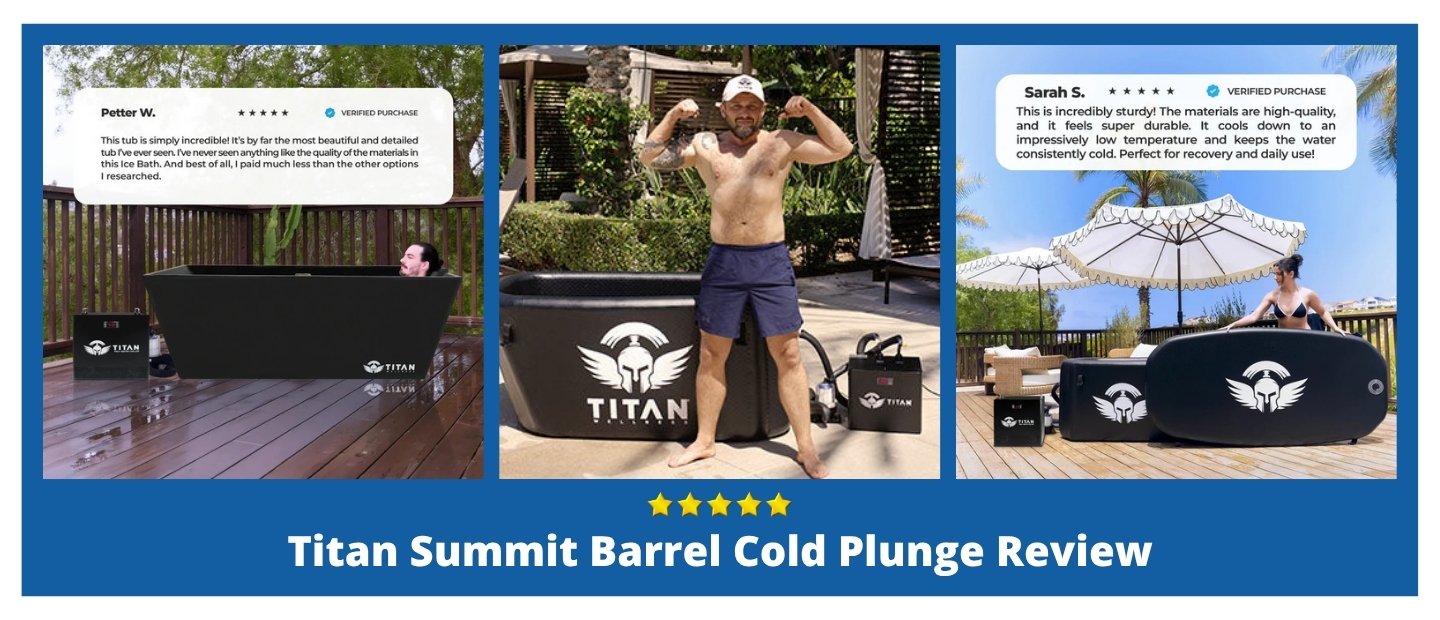
Titan Summit Barrel Cold Plunge Review: What Buyers Are Saying
The Titan Summit Barrel Cold Plunge sits at the top of Titan Wellness’s lineup. It starts at $3,890 for the…
July 31, 2026
Read More